

This is Part 2 of the application. If you haven’t finished “How to Create an OpenCCC Account – Application Part 1,” please follow those steps first. If you already have an OpenCCC Account, log in and start with Step 1 below.
Important Update (effective October 1, 2026):
To keep students safe and prevent fraud, all new students applying through CCCStart must go through a secure identity check as part of their application. This process only confirms who you are and does not check your immigration status. If you can’t do the online verification, NOCE staff will help you, and you might need to verify your identity in person. For more details, visit: Identity Confirmation – North Orange Continuing Education.
If you’re having trouble logging into your OpenCCC account, please reach out to the OpenCCC Student Help Desk:
- 📞 Phone: (877) 247-4836
- 📧 Email: support@openccc.net
Step 1:
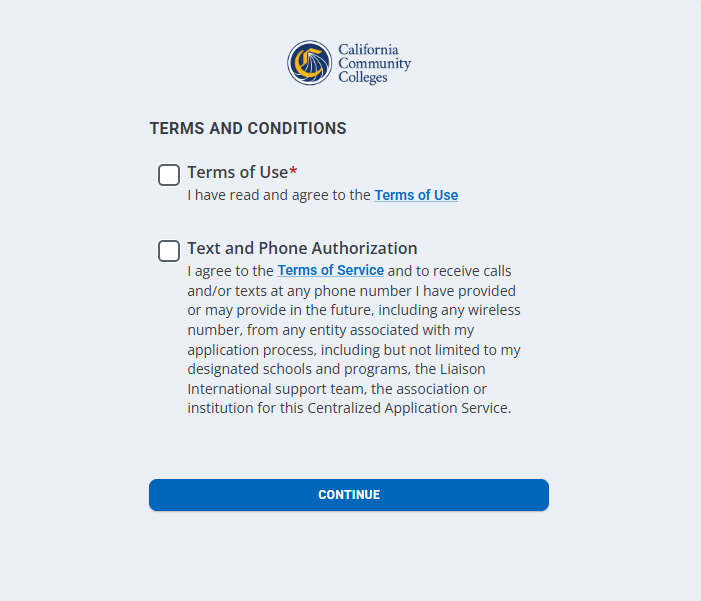
Terms and Conditions
Review the Terms of Use and Text and Phone Authorization information by selecting each link. Once you have reviewed the terms, click Continue in the bottom of the page.
Step 2:
GDPR
Select the following:
- Complete the European Union Data Protection question and click “Save and Continue” in the bottom right of the screen.

Step 3:
My Journey
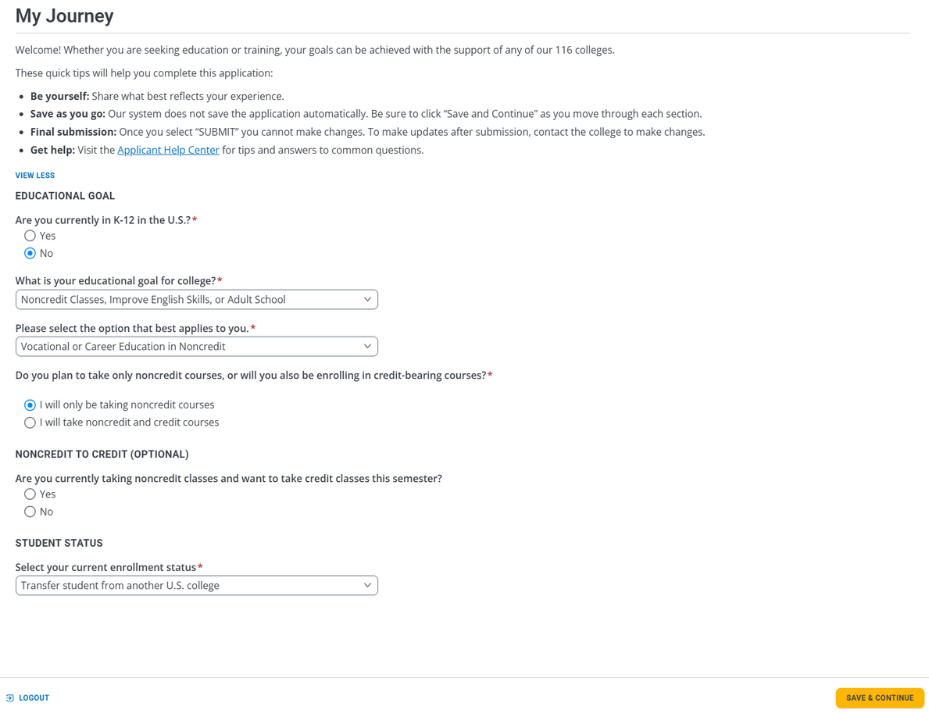
Complete the My Journey section by answering the following questions:
- Are you currently in K-12 in the U.S.?
- What is your educational goal for college?
Note: To view and select NOCE programs, you must choose Career Education or Noncredit Classes, Improve English Skills, or Adult School. Selecting a different option will prevent NOCE programs from appearing. - Please select the options that apply to you.
- Do you plan to take only noncredit courses, or will you also be enrolling in credit-bearing courses?
Note: If you are applying for NOCE noncredit courses, you must select I will only be taking noncredit courses. Otherwise, NOCE programs will not be available. - Select your current enrollment status.
Once completed, click Save & Continue in the bottom-right corner of the page.
Step 4:
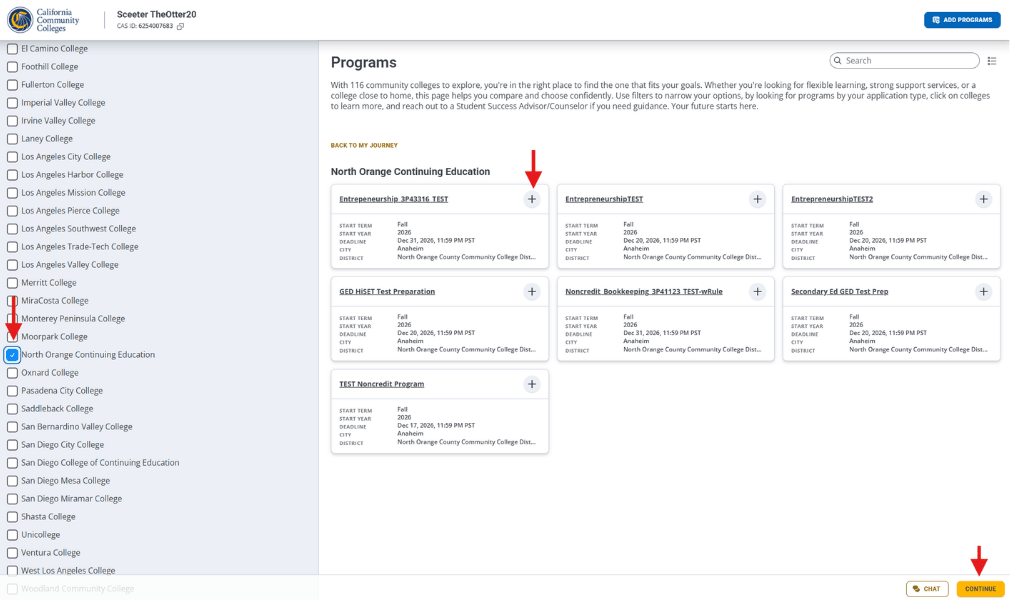
Programs
You should be taken directly to the NOCE Programs section. If not, scroll down the left-hand menu, select North Orange Continuing Education, then choose your desired program and click Continue in the bottom-right corner.
Note: NOCE programs will not appear if you selected:
- Earn a Degree or Transfer, Other, or Undecided for “What is your educational goal for college?”, or
- I will take noncredit and credit courses for “Do you plan to take only noncredit courses, or will you also be enrolling in credit-bearing courses?”
If you selected any of these options, return to the My Journey section and update your responses before proceeding.
Step 5:
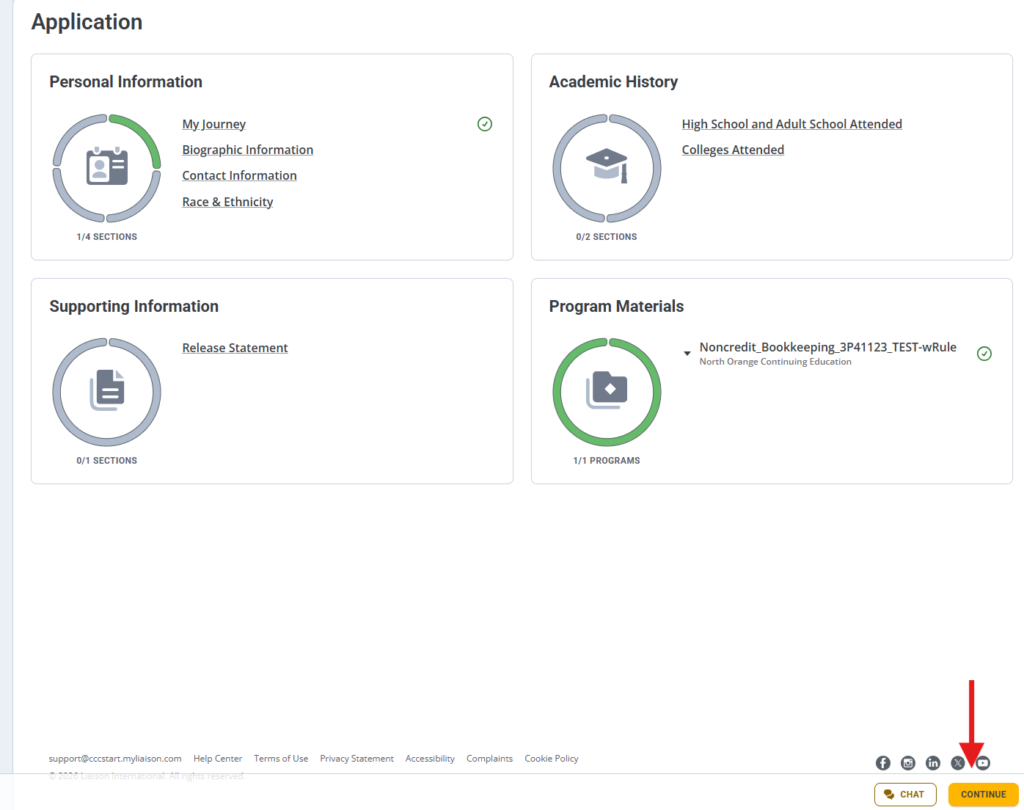
Homepage
You will then be taken to the CCCStart Homepage. Click Continue in the bottom-right corner of the screen to proceed.
Step 6:
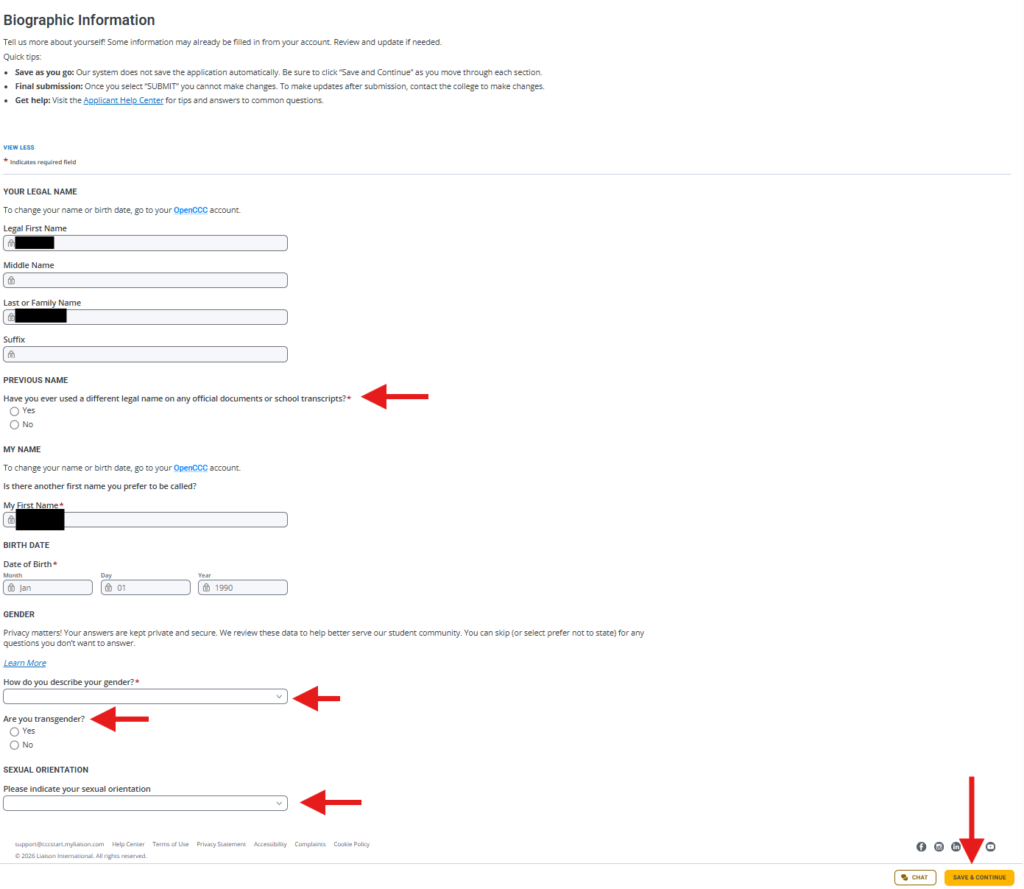
Biographic Information
Complete the following questions:
- Your Legal Name: In most cases, this information will be prefilled and will not require any action.
- Have you ever used a different legal name on any official documents or school transcripts?
- If your legal name, first name, or date of birth is incorrect, return to your OpenCCC account and update it by clicking the blue OpenCCC link.
- Please note: if you update any of your biographical information, such as your legal name or date of birth, you may be required to re-verify your identity before continuing your application.
- My First Name: In most cases, this information will be prefilled and will not require any action.
- Date of Birth: In most cases, this information will be prefilled and will not require any action.
- How do you describe your gender?
- Are you transgender? (optional)
- Sexual Orientation (optional)
Step 7:
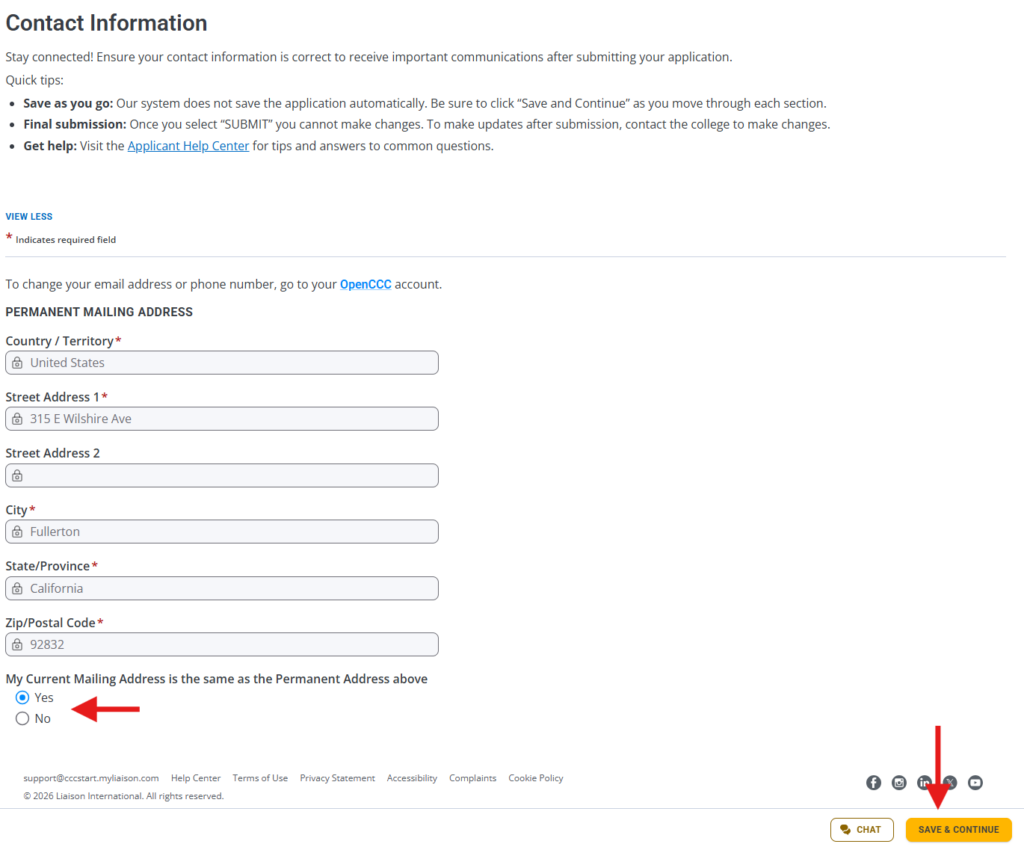
Contact Information
Complete the following questions:
- Permanent Mailing Address: In most cases, this information will be prefilled and will not require any action. To change your email address or phone number, return to your OpenCCC account and update it by clicking the blue OpenCCC
- My Current Mailing Address is the same as the Permanent Address above
Once completed, click Save & Continue in the bottom-right corner of the page.
Step 8:
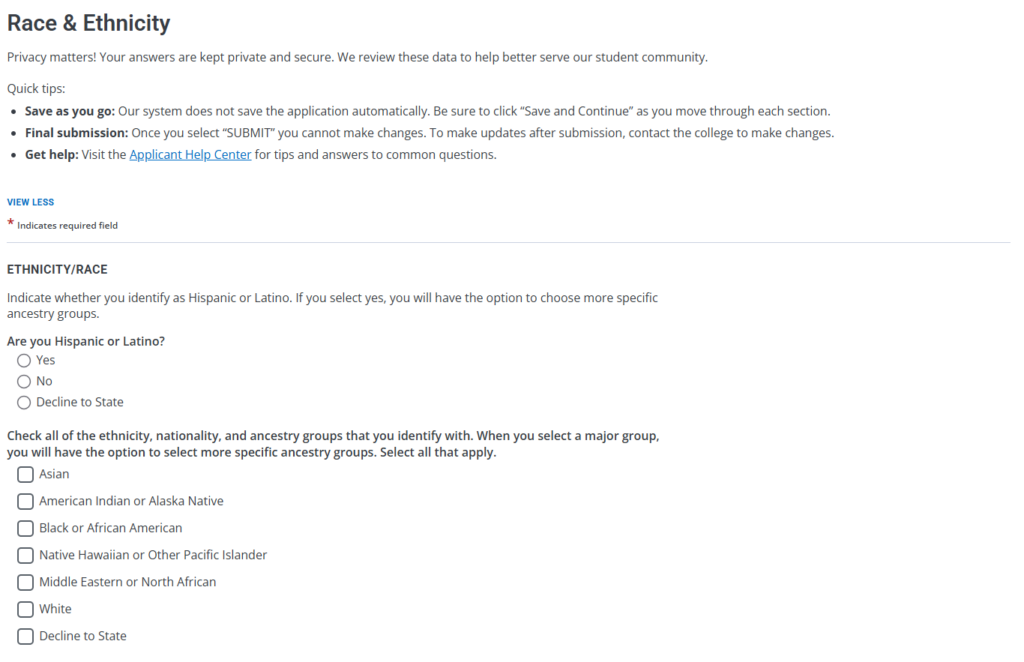
Race & Ethnicity
Complete the following questions:
- Are you Hispanic or Latino? (optional)
- Check all of the ethnicity, nationality, and ancestry groups that you identify with. If applicable, you will have the option to select more specific ancestry groups. (Optional)
When you’re done, click Save & Continue in the bottom-right corner of the page.
Step 9:
High School
Complete the following questions:
- High School and Adult School Attended: Select Add High School and Adult School Attended and enter the requested school information. Approximate attendance dates are acceptable.
- If you do not wish to provide this information, select I’m not adding high school and adult school attended and click Continue in the bottom right-hand corner.
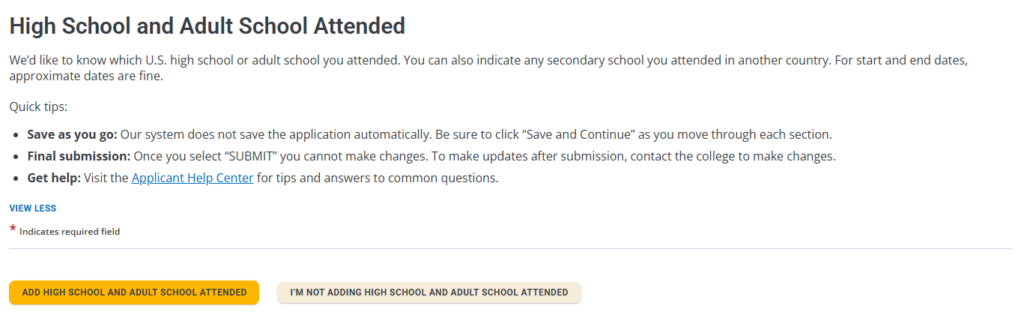
Step 9A:
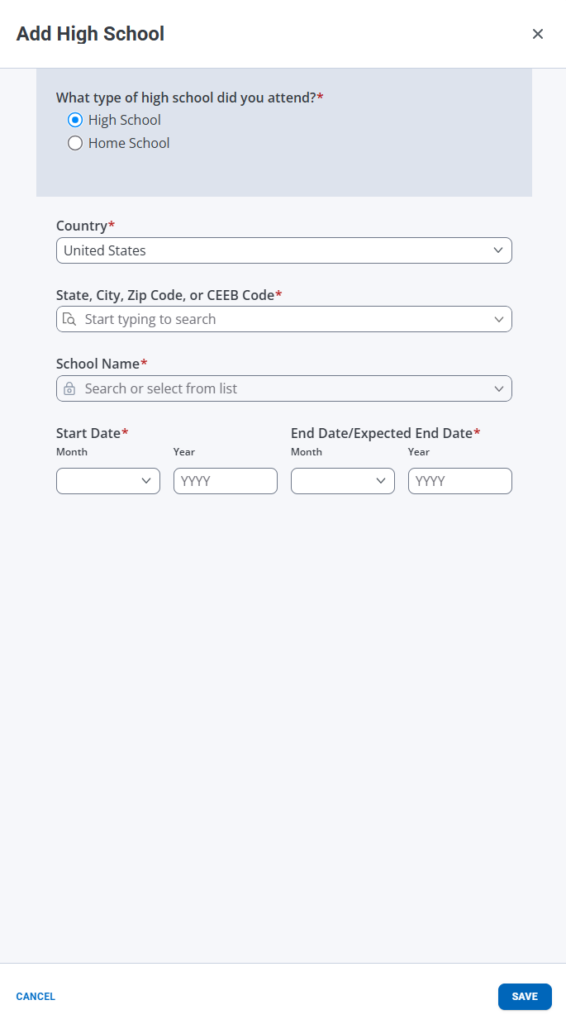
High School Attended
If you selected Add High School and Adult School Attended, complete the following fields:
- What type of high school did you attend?
- Country
- State/Province
- City
- High School Name
- Start Date
- End Date/Expected End Date
Once completed, click Save in the bottom-right corner of the page.
Step 10:
Colleges
Complete the following questions:
- Add Colleges Attended: Select this option if you have previously attended a college or university. Approximate attendance dates are acceptable.
- If you have not attended any colleges or universities, select I have not attended any colleges attended.
Once completed, click Continue in the bottom-right corner of the page.
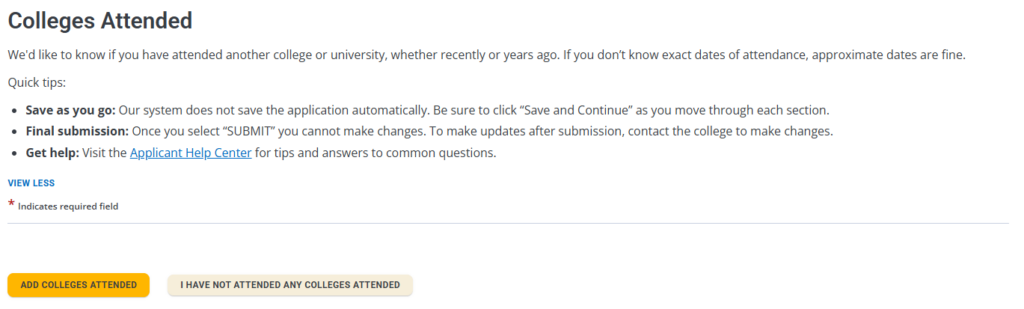
Step 10A:
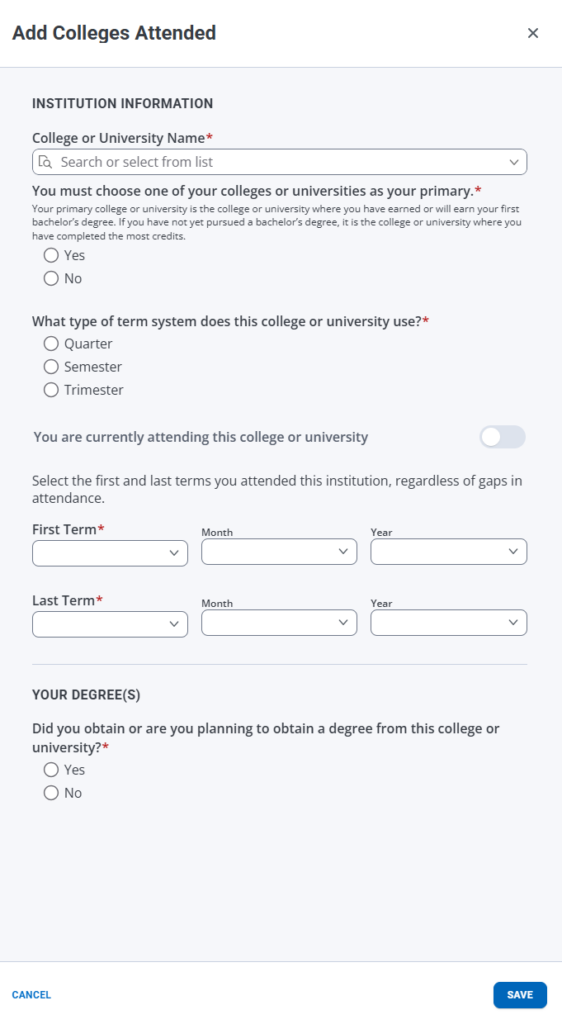
Colleges Attended
If you selected Add Colleges Attended, complete the following fields:
- College or University Name
- Is this your primary college or university?
- What type of term system does this college or university use?
- You are currently attending this college or university
- First Term Attended
- Last Term Attended
- Did you obtain or are you planning to obtain a degree from this college or university?
Once completed, click Save in the bottom-right corner of the page.
Step 11:
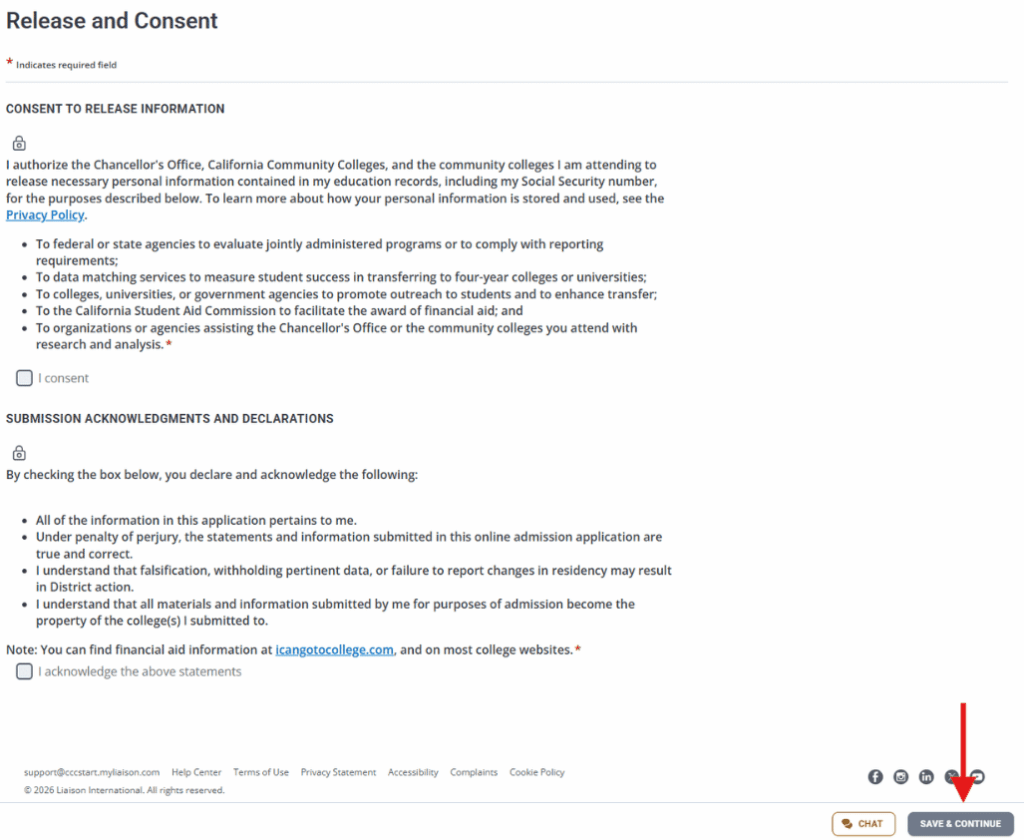
Release and Consent
Complete the following questions:
- Request for Consent to Release Information: Select I Consent if you agree to the release of information for the purposes described.
- Application Submission Acknowledgments & Declarations: Review the statements and select I Acknowledge the Above Statements.
Once completed, click Save & Continue to submit your application. Please note: After submitting, you will no longer be able to make changes to your application.
Step 12:
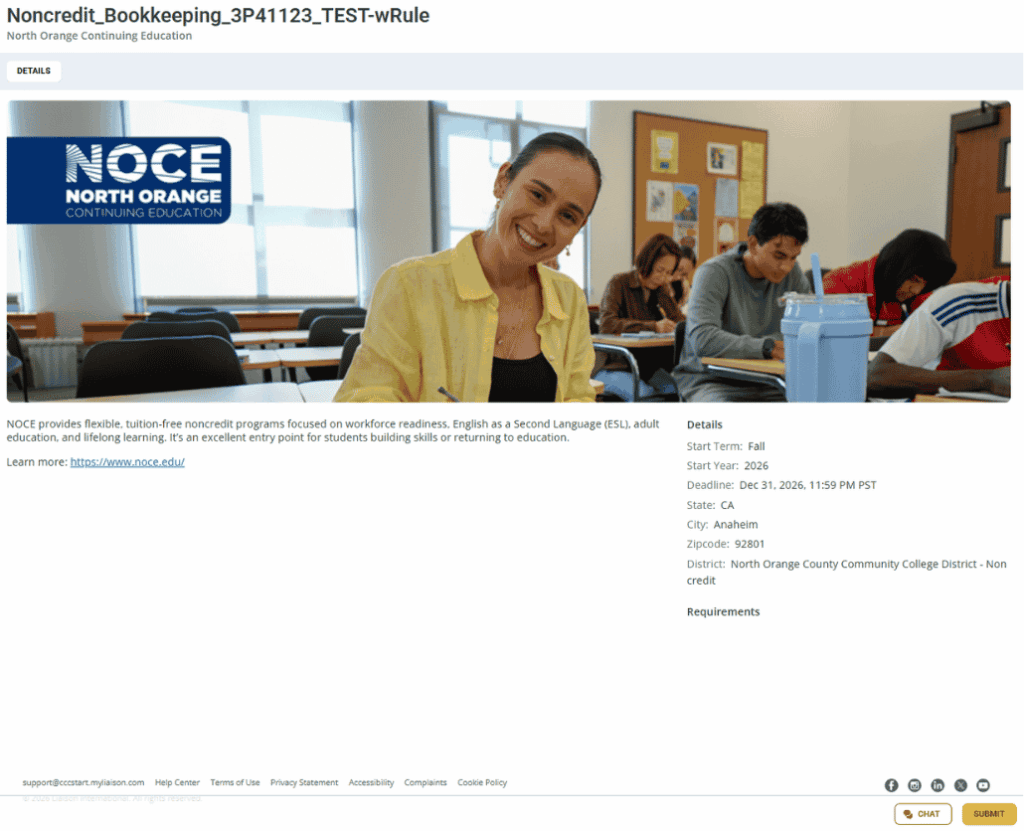
Application Submission
Review your application for accuracy, then click Submit in the bottom-right corner of the page to submit your application. Once submitted, you will no longer be able to make changes to your application.
Step 13:
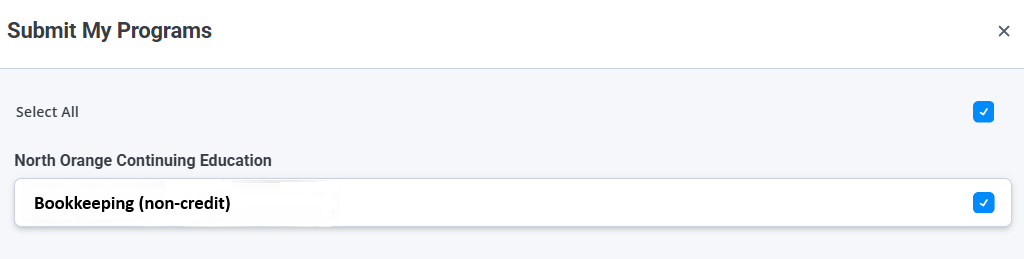
Submit My Programs
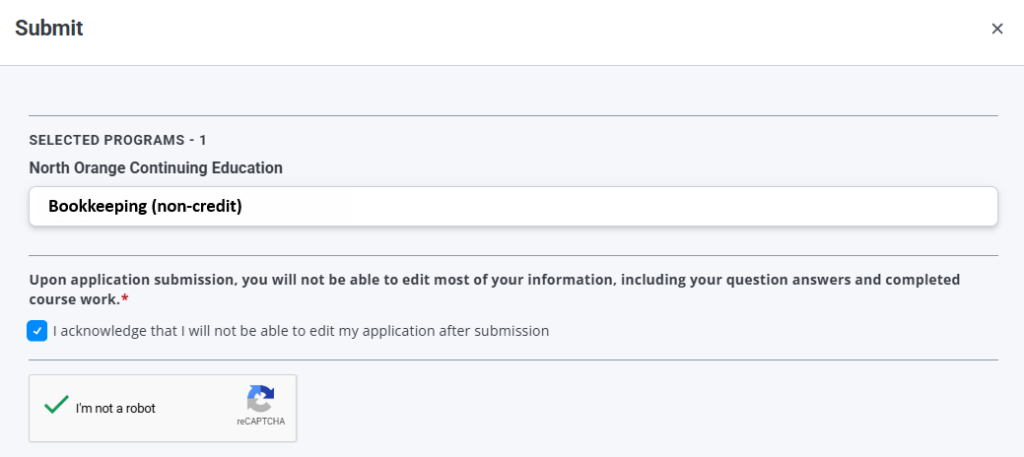
Verify that your desired program is selected under North Orange Continuing Education, then click Continue in the bottom-right corner of the page.
Submit
Review your selected program under North Orange Continuing Education. Complete the reCAPTCHA, check I acknowledge that I will not be able to edit my application after submission, and then click Submit in the bottom-right corner of the page to complete your application.
This completes the application submission process.